o
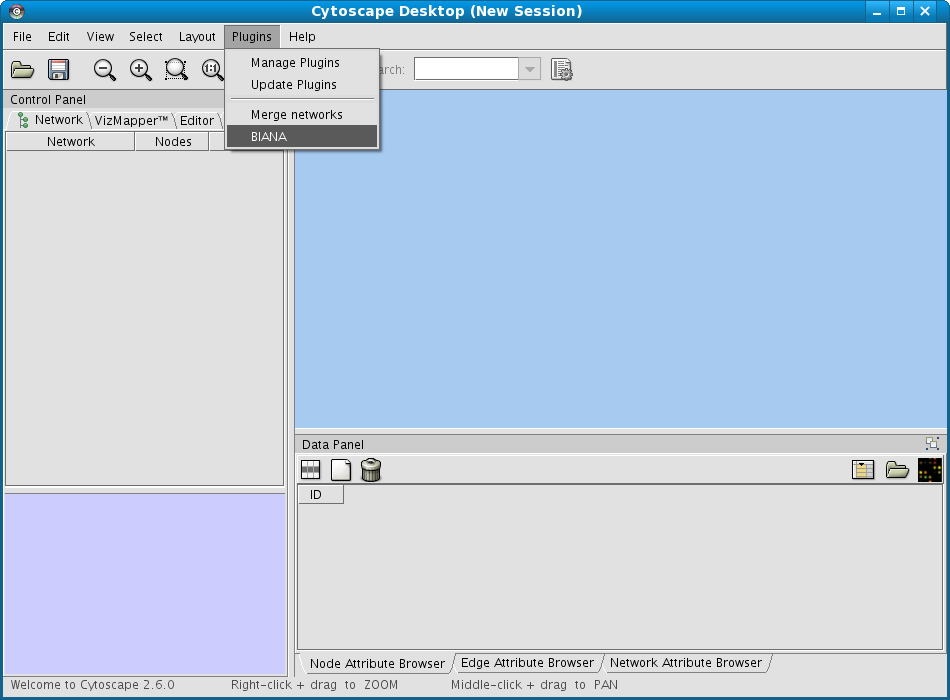
On the Cytoscape menus at the top, go to Plugins and then click on BIANA as demonstrated in Fig 1.1.
Figure 1.1: Starting BIANA from Cytoscape
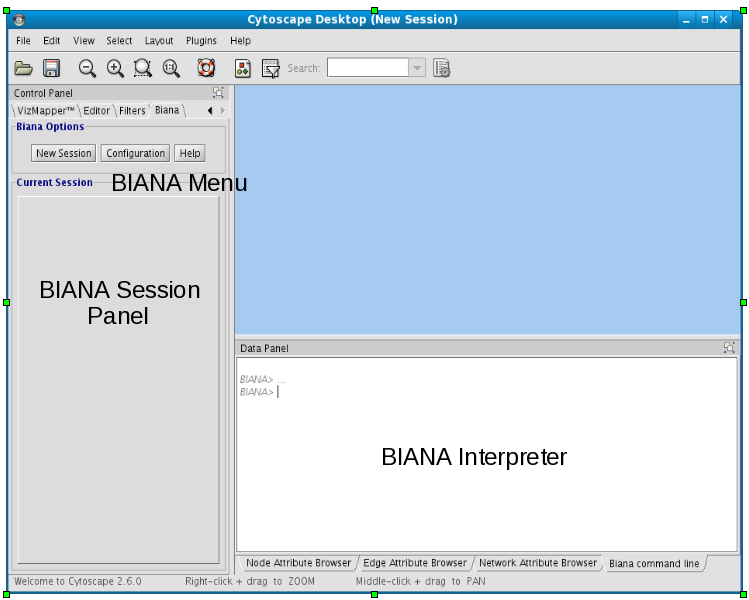
Once BIANA is started, you should view the following section in the Cytoscape window (Fig 1.2).
Inside left Cytoscape panel:
BIANA Menu:
Main BIANA menu buttons.
BIANA Session Panel:
When a working session is started, all working elements can be accessed in this panel.
Inside bottom Cytoscape panel:
BIANA Interpreter:
Python interpreter where you can execute manually all BIANA commands and see how the graphical interface generates them.
Figure 1.2: BIANA inside cytoscape
Using online BIANA Database hosted at SBI
The online BIANA database has the following connection parameters (it is case-sensitive!):
User: biana_user
Password: biana_password
Database server: sbi.imim.es
Database Name: online_bianaDB
The online BIANA database contains the following External Databases:
Uniprot-Swissprot database
Gene ontology (GO)
NCBI Taxonomy database
PSI-MI ontology
IntAct database
MINT database
Reactome
Tutorial databases (theoretical example)
SBI datasets:
Inferred Metabolic Network
Transcription Factor cooperation and Regulated genes
Protein-protein interaction network predicted from sequences/structure distant patterns
You can access our online BIANA database for testing purposes. It allows you to skip the installation step of installing a MySQL server and the initial steps of database creation and population. However, our online BIANA database has the following limitations:
It only has READ permissions.
New databases, parse new data or create unification protocols are not allowed. If user tries to execute some of these operations, an exception will occur.
It is a reduced database, which only contains necessary data to execute the tutorial exercises.
Creating your own BIANA Database
See tutorial & reference manual on the Documentation page.